> ## Documentation Index
> Fetch the complete documentation index at: https://densify-sync-changelog-2.mintlify.site/llms.txt
> Use this file to discover all available pages before exploring further.
# Creating Custom Views
export const InlineImage = ({src, href, alt = "", size = "medium", customSize, position = "left", children}) => {
const sizeClasses = {
small: "w-6 h-6",
medium: "w-8 h-8",
large: "w-12 h-12",
xlarge: "w-16 h-16"
};
const ImageComponent = () =>  ;
const imageElement = href ?
: ;
return <>
{position === "left" && imageElement}
{position === "left" && " "}
{children}
{position === "right" && " "}
{position === "right" && imageElement}
;
};
You can create your own views allowing you to navigate your Kubernetes environment and report on specific systems. Create views to see only those containers of interest. Save the view to help you and others quickly identify risk and waste for a subset of the environment.
;
const imageElement = href ?
: ;
return <>
{position === "left" && imageElement}
{position === "left" && " "}
{children}
{position === "right" && " "}
{position === "right" && imageElement}
;
};
You can create your own views allowing you to navigate your Kubernetes environment and report on specific systems. Create views to see only those containers of interest. Save the view to help you and others quickly identify risk and waste for a subset of the environment.
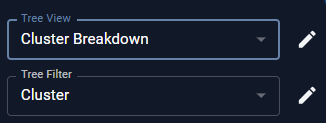 You can create custom views from the tree viewer or any table.
- From the tree viewer click to open the **Manage Views** dialog box.
-
Click **New** or **Copy**.
You cannot modify an original system view or a public view, that is in use by other users.
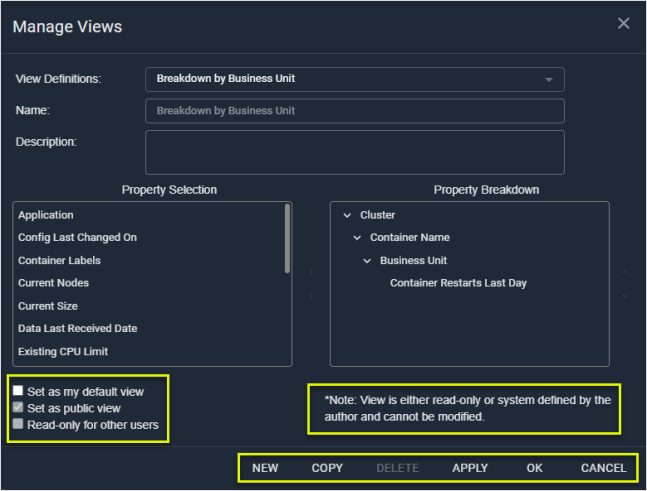
- Enter the name and description of your new view.
-
In the **Property Selection** list, select a property and then click > to add the property. Your selection appears in the **Property Breakdown** pane.
-
Move the added property up or down to create the desired view.
-
To remove a property, select it and press \< to return it to the selection list.
-
Select the options, as applicable:
-
**Set as my default view**--This view will be selected each time you open
Kubex
.
-
**Set as public view**--All users can use this view. If unchecked, then this view is set as private.
-
**Read-only for other users**--All users can use this view, but cannot edit it.
- Click **OK** to save the view or **Apply** to save and apply the view.
Your new view is now selectable from the Tree Viewer.
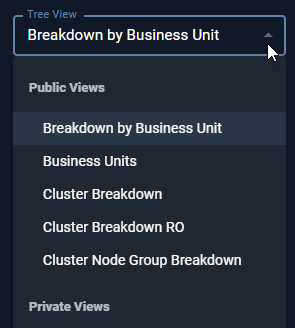 To further limit the number of systems you can now create a filter for this view. See [Creating Custom Filters](/docs-kubex/Content/Kubex/Creating_Custom_Filters).
A number of views are provided with Kubex to facilitate the selection of systems and to provide a template for creating new views.
## Creating Views from a Table
You can also create a view from any table, using the columns to define your view:
To further limit the number of systems you can now create a filter for this view. See [Creating Custom Filters](/docs-kubex/Content/Kubex/Creating_Custom_Filters).
A number of views are provided with Kubex to facilitate the selection of systems and to provide a template for creating new views.
## Creating Views from a Table
You can also create a view from any table, using the columns to define your view:
- From any page that includes a Table View field, click to open the context menu.
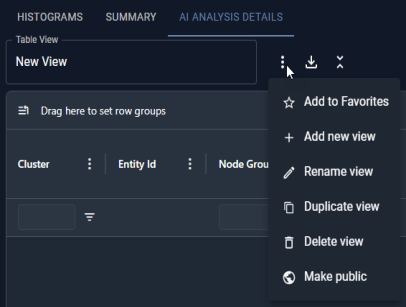
- Click **+ Add new view** and enter a name for your view.
- Click on the column header and drag it to the header bar.
- Move the column around until you have the desired view.