> ## Documentation Index
> Fetch the complete documentation index at: https://densify-sync-changelog-2.mintlify.site/llms.txt
> Use this file to discover all available pages before exploring further.
# Creating Custom Filters
export const InlineImage = ({src, href, alt = "", size = "medium", customSize, position = "left", children}) => {
const sizeClasses = {
small: "w-6 h-6",
medium: "w-8 h-8",
large: "w-12 h-12",
xlarge: "w-16 h-16"
};
const ImageComponent = () =>  ;
const imageElement = href ?
: ;
return <>
{position === "left" && imageElement}
{position === "left" && " "}
{children}
{position === "right" && " "}
{position === "right" && imageElement}
;
};
You can create your own filters allowing you to navigate your Kubernetes environment and report on specific systems. Create filters to locate and report on only those containers of interest. Save the filter to help you and others to quickly identify risk and waste for a subset of the environment.
;
const imageElement = href ?
: ;
return <>
{position === "left" && imageElement}
{position === "left" && " "}
{children}
{position === "right" && " "}
{position === "right" && imageElement}
;
};
You can create your own filters allowing you to navigate your Kubernetes environment and report on specific systems. Create filters to locate and report on only those containers of interest. Save the filter to help you and others to quickly identify risk and waste for a subset of the environment.
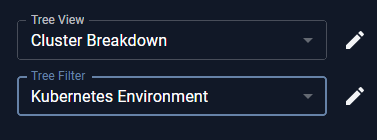 You can create a custom filter from the tree viewer or any table.
- From the tree viewer click to open the Manage Filters dialog box.
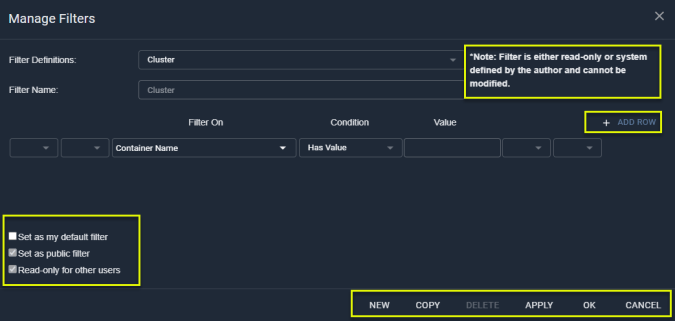
- In the **Manage Filters** dialog box, click **Copy** or **New** and enter a name for the new filter.
- Click the **+ Add Row** and define your filter criteria (e.g. Business Unit).
- Further filtering can be applied by defining a condition. From the **Condition** dropdown list, select the condition to be applied to the filter criteria (e.g. Starts with).
- In the **Value** field, enter a value for the selected condition (e.g. Eng).
- Continue building your filter beyond a single row, by clicking **+ Add Row** and repeat from step 3.
-
Select other options as applicable:
-
**Set as my default filter**--This filter will be selected each time you open Kubex.
-
**Set as public filter**--All users can use this filter. If unchecked, then this view is set as private.
-
**Read-only for other users**--All users can use this filter, but cannot edit it.
- Click **OK** to save the filter or **Apply** to save and apply the filter.
If you have created a filter that has no systems that match, the message, "No Data Available" is displayed and you need to change/adjust the filter.
When you are creating filters with multiple entries, ensure that there are no other AND or OR statements at the end of the last line:
- If you place an ‘OR’ in the last line with an empty line following, then you will get the following error message: **Filter Field is required on line 2**.
- If you place an ‘OR’ on the last line without any additional lines following, then you will get the following error message: **An error occurred during query validation**.
## Creating Complex Filters
If you want to create complex filters, using the brackets and the AND/OR options, you should be familiar with building SQL queries.
There are two types of condition value:
-
Integer fields (numeric) include extra filter conditions, such as:
-
Greater Than
-
Less Than
-
Greater Than or Equal
-
Less Than or Equal
- String fields define text strings to match.