> ## Documentation Index
> Fetch the complete documentation index at: https://densify-sync-changelog-2.mintlify.site/llms.txt
> Use this file to discover all available pages before exploring further.

# Using the Cloud Tree Viewer

export const InlineImageWithText = ({src, href, children, width = 80, caption}) => {
  return <span className="inline-flex items-center gap-3 align-middle">
            <a href={href} className="inline-block border-b-0">
                <Frame caption={caption}>
                    <img src={src} alt="" className="object-contain align-middle " width={width} style={{
    minWidth: width
  }} />
                </Frame>
            </a>
            <span className="align-middle">{children}</span>
        </span>;
};

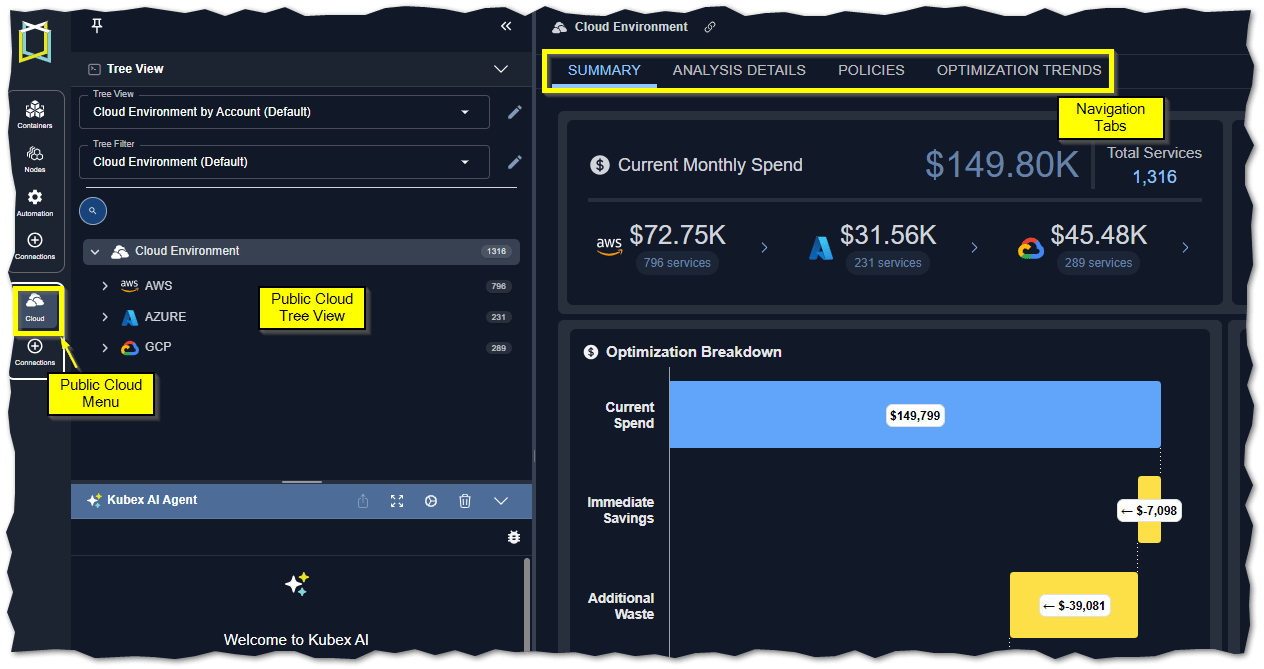
The tree viewer offers an intuitive and efficient way to navigate and explore your cloud environments.

<Frame caption="Figure: Locating the Tree Viewer">
  <img src="https://mintcdn.com/densify-sync-changelog-2/y00Qdd_2LtkzW3Wd/images/docs-cloudex/cloud_landingpage.png?fit=max&auto=format&n=y00Qdd_2LtkzW3Wd&q=85&s=b42c719412ec5d3dfba629a32bce70a6" alt="" width="1264" height="669" data-path="images/docs-cloudex/cloud_landingpage.png" />
</Frame>

Use the tree viewer to select the scope of systems on which to report. As you navigate through the tree, the reports on the right update automatically to show your selected scope.
If you are using Kubex for container optimization, then see the following:

<div style={{ width: "100%", display:"flex", flexDirection:"row", alignItems:"center", justifyContent: "center" }}>
  <Frame>
    <img src="https://mintcdn.com/densify-sync-changelog-2/y00Qdd_2LtkzW3Wd/images/docs-kubex/Content/Cloudex/03000174.png?fit=max&auto=format&n=y00Qdd_2LtkzW3Wd&q=85&s=e508e8428bc91888f93bcab7b30a88ea" width="121" height="147" data-path="images/docs-kubex/Content/Cloudex/03000174.png" />
  </Frame>

  <div style={{ width: "100%", display:"flex", flexDirection:"column" }}>
    <div style={{ width: "100%", display:"flex", flexDirection:"row", alignItems: "center" }}>
      <Frame>
        <img src="https://mintcdn.com/densify-sync-changelog-2/y00Qdd_2LtkzW3Wd/images/docs-kubex/Content/Cloudex/03000004.png?fit=max&auto=format&n=y00Qdd_2LtkzW3Wd&q=85&s=ebd03211956005a7487d4bee21b4089e" maxWidth={55} height={58} data-path="images/docs-kubex/Content/Cloudex/03000004.png" />
      </Frame>

      <p class="Body">Use the <a href="/docs-kubex/Content/Kubex/Using_the_Tree_Viewer">container tree viewer</a> to navigate your container environment.</p>
    </div>

    <div style={{display:"flex", flexDirection:"row", alignItems: "center"}}>
      <Frame>
        <img src="https://mintcdn.com/densify-sync-changelog-2/y00Qdd_2LtkzW3Wd/images/docs-kubex/Content/Cloudex/03000092.png?fit=max&auto=format&n=y00Qdd_2LtkzW3Wd&q=85&s=a3bd575852c76597cc721a7c4a4aeddc" width={55} height={58} data-path="images/docs-kubex/Content/Cloudex/03000092.png" />
      </Frame>

      <p class="Body">Use the <a href="/docs-kubex/Content/Kubex/Using_the_Node_Tree_Viewer">node tree viewer</a> to navigate node groups supporting your container environments.</p>
    </div>
  </div>
</div>

## Hiding the Tree Viewer

Once you have selected the scope of systems to review you can hide the tree viewer. If you are working on a smaller screen or laptop it will be easier to view tables and charts with the increased screen space.

<div style={{ width: "100%", display:"flex", flexDirection:"row", alignItems:"center", gap:"20px"}}>
  <div style={{ width: "300px", minWidth: "300px" }}>
    <Frame>
      <img src="https://mintcdn.com/densify-sync-changelog-2/y00Qdd_2LtkzW3Wd/images/docs-kubex/Content/Cloudex/03000185_277x37.png?fit=max&auto=format&n=y00Qdd_2LtkzW3Wd&q=85&s=f7d7cf77b122a2fc4b395f54034c265f" width={"100%"} style={{ height: "40px", objectFit: "contain" }} data-path="images/docs-kubex/Content/Cloudex/03000185_277x37.png" />
    </Frame>
  </div>

  <div style={{ flex: 1 }}>
    <p>By default, the tree view is pinned to the left side of the screen.</p>
    <p>When the viewer is pinned, click the chevrons to open/close the tree viewer.</p>
  </div>
</div>

<div style={{ width: "100%", display:"flex", flexDirection:"row", alignItems:"center", gap:"20px"}}>
  <div style={{ width: "300px", minWidth: "300px" }}>
    <Frame>
      <img src="https://mintcdn.com/densify-sync-changelog-2/y00Qdd_2LtkzW3Wd/images/docs-kubex/Content/Cloudex/03000184_275x34.png?fit=max&auto=format&n=y00Qdd_2LtkzW3Wd&q=85&s=b8663f4af8e6501bc2d527f148ce54d1" width={"100%"} style={{ height: "40px", objectFit: "contain" }} data-path="images/docs-kubex/Content/Cloudex/03000184_275x34.png" />
    </Frame>
  </div>

  <div style={{ flex: 1 }}>
    <p>Click the pin to hide the tree viewer.</p>\
    Use the <InlineImageWithText src="/images/docs-kubex/Content/Cloudex/03000186.png" />icon on the main page, to open the tree viewer as required and the X to close it, when not required.
  </div>
</div>

## Views and Filters

The default view is your container hierarchy i.e. Cloud Provider > Cluster> Region> Service > Instance. This view can be customized to better manage your data. See [Creating Custom Views](/docs-kubex/Content/Kubex/Creating_Custom_Views).
You can also create customized filters to manage large sets of data. See [Creating Custom Filters](/docs-kubex/Content/Kubex/Creating_Custom_Filters).

## Navigating the Tree Viewer

The following icons are available, by default. You can create custom views based on other attributes that may not include any of the following items.

<Accordion title="Table: Tree Viewer Icons">
  <table style={{ width: "100%", borderCollapse: "collapse" }}>
    <colgroup>
      <col style={{ width: "25%" }} />

      <col style={{ width: "20%" }} />

      <col style={{ width: "55%" }} />
    </colgroup>

    <thead>
      <tr>
        <th style={{ verticalAlign: "middle", textAlign: "center" }}>Icon</th>
        <th style={{ verticalAlign: "middle", textAlign: "center" }}>Entity</th>
        <th style={{ verticalAlign: "middle", textAlign: "center" }}>Description</th>
      </tr>
    </thead>

    <tbody>
      <tr>
        <td style={{ verticalAlign: "middle", textAlign: "center" }}>
          <img src="https://mintcdn.com/densify-sync-changelog-2/y00Qdd_2LtkzW3Wd/images/docs-kubex/Content/Cloudex/03000162.png?fit=max&auto=format&n=y00Qdd_2LtkzW3Wd&q=85&s=a1d2d0c5500aa427e99da136464f68cd" width="55" height="58" data-path="images/docs-kubex/Content/Cloudex/03000162.png" />
        </td>

        <td style={{ verticalAlign: "middle", textAlign: "center" }}>Cloud Environment</td>

        <td style={{ verticalAlign: "middle", textAlign: "center" }}>
          The top level entity that contains your cloud infrastructure.
        </td>
      </tr>

      <tr>
        <td style={{ verticalAlign: "middle", textAlign: "center" }}>
          <img src="https://mintcdn.com/densify-sync-changelog-2/y00Qdd_2LtkzW3Wd/images/docs-kubex/Content/Cloudex/03000163.png?fit=max&auto=format&n=y00Qdd_2LtkzW3Wd&q=85&s=0edab3d0c337123475e38ff447887639" width="55" height="58" data-path="images/docs-kubex/Content/Cloudex/03000163.png" />
        </td>

        <td style={{ verticalAlign: "middle", textAlign: "center" }}>Region</td>

        <td style={{ verticalAlign: "middle", textAlign: "center" }}>
          This represents a region. The region is the geographic location where your public cloud resources are located.
        </td>
      </tr>

      <tr>
        <td style={{ verticalAlign: "middle", textAlign: "center" }}>
          <img src="https://mintcdn.com/densify-sync-changelog-2/y00Qdd_2LtkzW3Wd/images/docs-kubex/Content/Cloudex/03000166.png?fit=max&auto=format&n=y00Qdd_2LtkzW3Wd&q=85&s=40d231bd9f0e817de6f0a4d297cfdc6e" width="55" height="58" data-path="images/docs-kubex/Content/Cloudex/03000166.png" />

          <img src="https://mintcdn.com/densify-sync-changelog-2/y00Qdd_2LtkzW3Wd/images/docs-kubex/Content/Cloudex/03000167.png?fit=max&auto=format&n=y00Qdd_2LtkzW3Wd&q=85&s=5aea086783f4fe1baced94321e1a6e0d" width="55" height="58" data-path="images/docs-kubex/Content/Cloudex/03000167.png" />

          <img src="https://mintcdn.com/densify-sync-changelog-2/y00Qdd_2LtkzW3Wd/images/docs-kubex/Content/Cloudex/03000168.png?fit=max&auto=format&n=y00Qdd_2LtkzW3Wd&q=85&s=075ea0ae98b72bb1e7bdfdb1c0c17f8e" width="55" height="58" data-path="images/docs-kubex/Content/Cloudex/03000168.png" />
        </td>

        <td style={{ verticalAlign: "middle", textAlign: "center" }}>Service Type</td>

        <td style={{ verticalAlign: "middle", textAlign: "center" }}>
          This represents the type of service. Currently the following types are supported:

          <ul style={{ paddingLeft: "1.2rem", textAlign: "left" }}>
            <li>AWS EC2, RDS and ASG</li>
            <li>Azure VM and VM Scale Sets</li>
            <li>GCP Compute Instance</li>
          </ul>
        </td>
      </tr>

      <tr>
        <td style={{ verticalAlign: "middle", textAlign: "center" }}>
          <img src="https://mintcdn.com/densify-sync-changelog-2/y00Qdd_2LtkzW3Wd/images/docs-kubex/Content/Cloudex/03000165.png?fit=max&auto=format&n=y00Qdd_2LtkzW3Wd&q=85&s=082276fc029ff0fe461c6004a633c117" width="55" height="58" data-path="images/docs-kubex/Content/Cloudex/03000165.png" />

          <img src="https://mintcdn.com/densify-sync-changelog-2/y00Qdd_2LtkzW3Wd/images/docs-kubex/Content/Cloudex/03000169.png?fit=max&auto=format&n=y00Qdd_2LtkzW3Wd&q=85&s=3cd5feecb83d3e546c2f8310f9f67671" width="55" height="58" data-path="images/docs-kubex/Content/Cloudex/03000169.png" />

          <img src="https://mintcdn.com/densify-sync-changelog-2/y00Qdd_2LtkzW3Wd/images/docs-kubex/Content/Cloudex/03000170.png?fit=max&auto=format&n=y00Qdd_2LtkzW3Wd&q=85&s=daa069746c0de6115275ffe387832c7e" width="55" height="58" data-path="images/docs-kubex/Content/Cloudex/03000170.png" />
        </td>

        <td style={{ verticalAlign: "middle", textAlign: "center" }}>Provider</td>

        <td style={{ verticalAlign: "middle", textAlign: "center" }}>
          This represents your public cloud provider. Currently AWS, Azure and GCP are supported.
        </td>
      </tr>

      <tr>
        <td style={{ verticalAlign: "middle", textAlign: "center" }}>
          <img src="https://mintcdn.com/densify-sync-changelog-2/y00Qdd_2LtkzW3Wd/images/docs-kubex/Content/Cloudex/03000164.png?fit=max&auto=format&n=y00Qdd_2LtkzW3Wd&q=85&s=bdf80da862e30ded21607c12df43a6a6" width="55" height="58" data-path="images/docs-kubex/Content/Cloudex/03000164.png" />
        </td>

        <td style={{ verticalAlign: "middle", textAlign: "center" }}>Instance</td>

        <td style={{ verticalAlign: "middle", textAlign: "center" }}>
          This represents an individual instance.
        </td>
      </tr>

      <tr>
        <td style={{ verticalAlign: "middle", textAlign: "center" }}>
          <img src="https://mintcdn.com/densify-sync-changelog-2/y00Qdd_2LtkzW3Wd/images/docs-kubex/Content/Cloudex/03000084.png?fit=max&auto=format&n=y00Qdd_2LtkzW3Wd&q=85&s=2962134e5f60e2f4ab3962f1f8e49cf3" width="55" height="58" data-path="images/docs-kubex/Content/Cloudex/03000084.png" />
        </td>

        <td style={{ verticalAlign: "middle", textAlign: "center" }}>Other Grouping</td>

        <td style={{ verticalAlign: "middle", textAlign: "center" }}>
          Represents other attributes or labels that have been used to group the data.
        </td>
      </tr>
    </tbody>
  </table>
</Accordion>

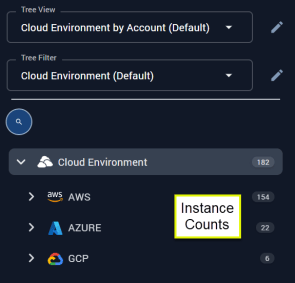
## Instance Counts

You can see a count of the number of instances at each branch of the tree viewer. When counts are very large, consider creating a [view](/docs-kubex/Content/Kubex/Creating_Custom_Views) or a [filter](/docs-kubex/Content/Kubex/Creating_Custom_Filters) to more efficiently view your systems.

<Frame caption="Figure: Instance Counts">
  <img src="https://mintcdn.com/densify-sync-changelog-2/y00Qdd_2LtkzW3Wd/images/docs-kubex/Content/Cloudex/03000004_295x283.png?fit=max&auto=format&n=y00Qdd_2LtkzW3Wd&q=85&s=6c171a3726df2094247bf44ec969e099" alt="" width="295" height="283" data-path="images/docs-kubex/Content/Cloudex/03000004_295x283.png" />
</Frame>

## Using the Tabs

Based on your selection in the tree viewer various tabs are displayed to view the selected data. When multiple systems are selected you see:

<ul>
  <li>
    <a href="/docs-kubex/Content/Cloudex/Summary_Tab-Cloud">
      Summary
    </a>

    \--Shows you a summary of how effectively your resources are being utilized.
  </li>

  <li>
    <a href="/docs-kubex/Content/Cloudex/AI_Analysis_Details_Table-Cloud">
      Analysis Details
    </a>

    \--Shows analysis details of the selected scope of your environment in various tabular views with utilization charts for a selected system.
  </li>
</ul>

When a single instance is selected you see:

<ul>
  <li>
    <a href="/docs-kubex/Content/Cloudex/Overview_Tab-Cloud">
      Overview
    </a>

    \--Shows you the utilization and recommendation details for the selected instance.
  </li>

  <li>
    <a href="/docs-kubex/Content/Cloudex/Catalog_Map_Tab">
      Catalog Map
    </a>

    \--Shows you collected and analyzed data for the selected instance.
  </li>
</ul>

#### Video Resources

<AccordionGroup>
  <Accordion title="Searching for a System">
    <iframe frameborder="0" height="310" src="https://player.vimeo.com/video/1044765242?badge=0&autopause=0&player_id=0&app_id=58479" width="550" />

    <a href="https://player.vimeo.com/video/1044765242?badge=0&autopause=0&player_id=0&app_id=58479" target="_blank">Searching for a System</a>
  </Accordion>

  <Accordion title="Using the Tree Viewer">
    <iframe frameborder="0" height="310" src="https://player.vimeo.com/video/1038945637?title=0&byline=0&portrait=0&badge=0&autopause=0&player_id=0&app_id=58479" width="550" />

    <a href="https://player.vimeo.com/video/1038945637?title=0&byline=0&portrait=0&badge=0&autopause=0&player_id=0&app_id=58479" target="_blank">Using the Tree Viewer</a>
  </Accordion>
</AccordionGroup>